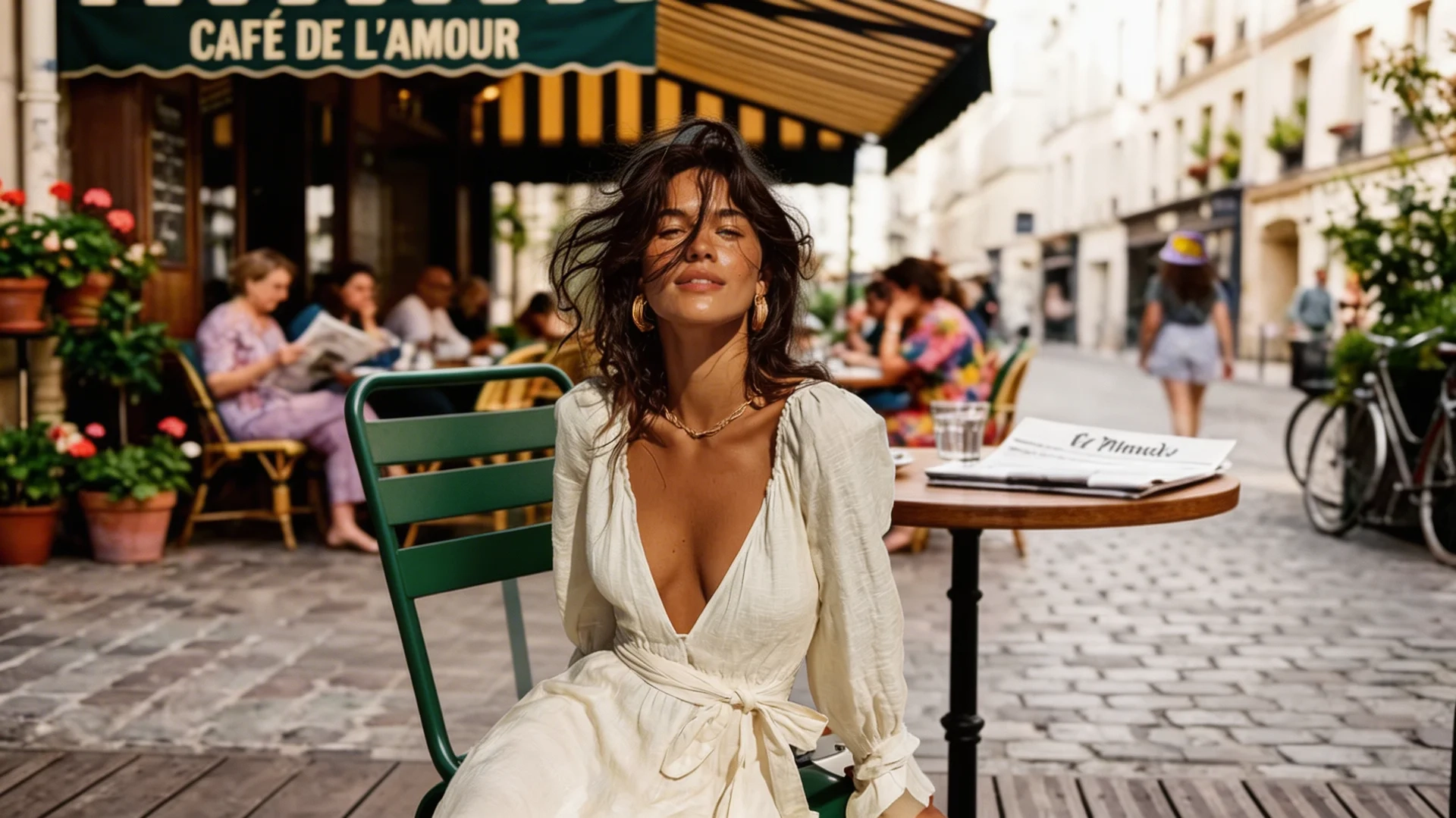
What Is Kling Image 4.0? A Guide to This Independent AI Image Generator
Learn what Kling Image 4.0 on klingimage4.art is, how it relates to Kling AI's official image models, and how to create your first image from text or photos.
Short answer
Kling Image 4.0 is the name of the independent, browser-based AI image generator at klingimage4.art. You write a prompt, add reference photos if you want them, pick a resolution and aspect ratio, and download the result. Nothing to install.
This site is not affiliated with Kuaishou or Kling AI. "Kling" is a trademark of Kuaishou. "Kling Image 4.0" is the name of this tool. It is not an official Kling AI model.
How does this relate to Kling AI's official models?
Here is what Kling AI's official sources said as of November 17, 2026:
- Kling 4.0 is Kling AI's new-generation video model. Kuaishou says it launched officially on October 15, 2026 (announcement).
- Kling AI's newest official image models are IMAGE 3.0 and IMAGE 3.0 Omni. Both launched on February 5, 2026 and support 2K and 4K output (release).
- According to the official IMAGE 3.0 guide, IMAGE 3.0 supports text-to-image, image-to-image with up to 10 reference images, editing by text instruction, and style conversion.
Want to use Kling AI's own image tools? Go to kling.ai. This site is a separate, independent service.
What can you do in the Kling Image 4.0 studio?
The studio on the homepage offers:
- Text-to-image: describe a scene in plain English and generate it.
- Photo editing with references: upload up to 14 JPG, PNG, or WebP photos (20 MB each) and say what should change.
- Three resolutions: 1K, 2K, and 4K.
- Ten aspect ratios: 1:1, 16:9, 9:16, 4:3, 3:4, 3:2, 2:3, 4:5, 5:4, and 21:9.
- History and downloads: your images are saved to your account, and you can download the full-resolution files.
How to create your first image
- Log in with Google or an email code.
- Write one clear sentence: subject + setting + lighting + camera or style. For example: "A white ceramic coffee cup on a pastel beige background, soft window shadows, minimal product photo."
- Choose a resolution. 1K is a good place to start, and 4K is for final assets.
- Choose an aspect ratio for where the image will be used: 1:1 for feeds, 9:16 for stories, 16:9 for thumbnails.
- Click Generate, check the result, and change one thing at a time in your prompt.
How credits work
Each image uses credits based on its resolution: 4 credits at 1K, 6 at 2K, and 8 at 4K. Adding reference photos costs 1 extra credit. If a generation fails, the credits go back to your account automatically. For current plans and credit packs, see the pricing page.
Tips for better results
- Put the subject first, then the setting, then the light.
- For text inside an image, put the exact words in quotation marks.
- When you edit a photo, say what must stay the same (face, product shape, logo) as well as what should change.
- Check every image before you publish it. AI images can get small text, hands, and fine details wrong.
Have a question? Email support@klingimage4.art or visit the contact page.
